Ever received an iPhone photo on your computer and found that it wouldn't open?
The file ends in .heic, Windows asks you to install an additional codec, or your browser simply shows a blank page.

If that sounds familiar, the problem usually isn't the image itself. It's HEIC compatibility.
The good news is that you don't need to install a special app just to view an HEIC image. One of the simplest solutions is to convert the HEIC image to a more widely supported format such as JPEG or PNG, then preview the converted image directly in your browser.
Why Can't I Open a HEIC Image?
HEIC is the default photo format used by many iPhones and iPads. Apple introduced HEIF/HEIC as a more storage-efficient alternative to JPEG, allowing photos to maintain high image quality while using less storage space.
That efficiency is one of the main reasons HEIC is useful for modern smartphones.
The downside is compatibility.
HEIC is based on the HEVC/H.265 compression technology, and support varies significantly between operating systems, browsers, apps, and websites.
For example, Safari has native support for HEIC on supported Apple platforms, while users of other browsers or operating systems may encounter limited or inconsistent support.
This creates a common situation:
Your iPhone can open the photo perfectly, but the computer or website you're sending it to can't.
HEIC on Windows
Windows 10 and Windows 11 can work with HEIC files, but support may depend on installed system components and codecs.
If the required extensions aren't installed, Windows may show a message asking you to install additional HEIF or HEVC components.
For someone who only wants to look at a few photos, installing additional codecs can feel like unnecessary work.
HEIC in Web Browsers
Browser support is another common problem.
If you upload an HEIC image to a website that doesn't support the format, you may see:
- A blank image preview
- An unsupported file format error
- A failed upload
- A broken thumbnail
- No preview at all
This is particularly annoying when you're trying to upload an iPhone photo to a forum, online store, email service, content management system, or web form.
The image itself may be perfectly fine. The website simply doesn't know how to decode HEIC.
What's the Easiest Way to View an HEIC Image?
If your computer or browser doesn't support HEIC, the easiest workaround is to convert the image to JPEG or PNG.
Instead of installing a codec or a dedicated image viewer, the workflow is simple:
HEIC → JPEG/PNG → Preview in your browser
JPEG is usually the most practical choice because it is supported by virtually every modern operating system, browser, social network, email service, and image editor.
For users who need transparency or lossless image data, PNG can be another option.
This approach is especially useful when you only need to view a few HEIC images and don't want to change your computer's system settings.
Things You Can Try — and Why They Aren't Always Convenient
There are several ways to deal with HEIC files, but each has drawbacks.
1. Install a Browser Extension
Some browser extensions add HEIC viewing capabilities.
The problem is that the extension needs to be installed on every device where you want to use it. It may also be unavailable on some browsers, mobile devices, or managed computers.
If you're using someone else's computer, a work computer, or a device where you can't install extensions, this isn't a practical solution.
2. Rename .heic to .jpg
Changing:
photo.heic
to:
photo.jpg
doesn't actually convert the image.
The file's internal encoding remains HEIC. Renaming the extension only changes the filename; it doesn't change the image data.
So this trick generally won't make an unsupported HEIC image suddenly become a JPEG.
3. Take a Screenshot
A screenshot works when you only need a quick copy.
However, it isn't a good solution for processing multiple photos. Screenshots can also reduce the effective resolution and remove the original image's metadata.
If you need to preserve the actual photo rather than capture what is displayed on screen, conversion is a better approach.
4. Upload the Image to a Photo Service
Services such as cloud photo libraries may be able to display HEIC images.
But this adds an extra step:
Upload → wait for synchronization → open the photo
For a single image, that can be more work than necessary. It also isn't always convenient when you simply need to send a compatible copy to another person.
5. Convert HEIC Online
For occasional use, online conversion is often the simplest option.
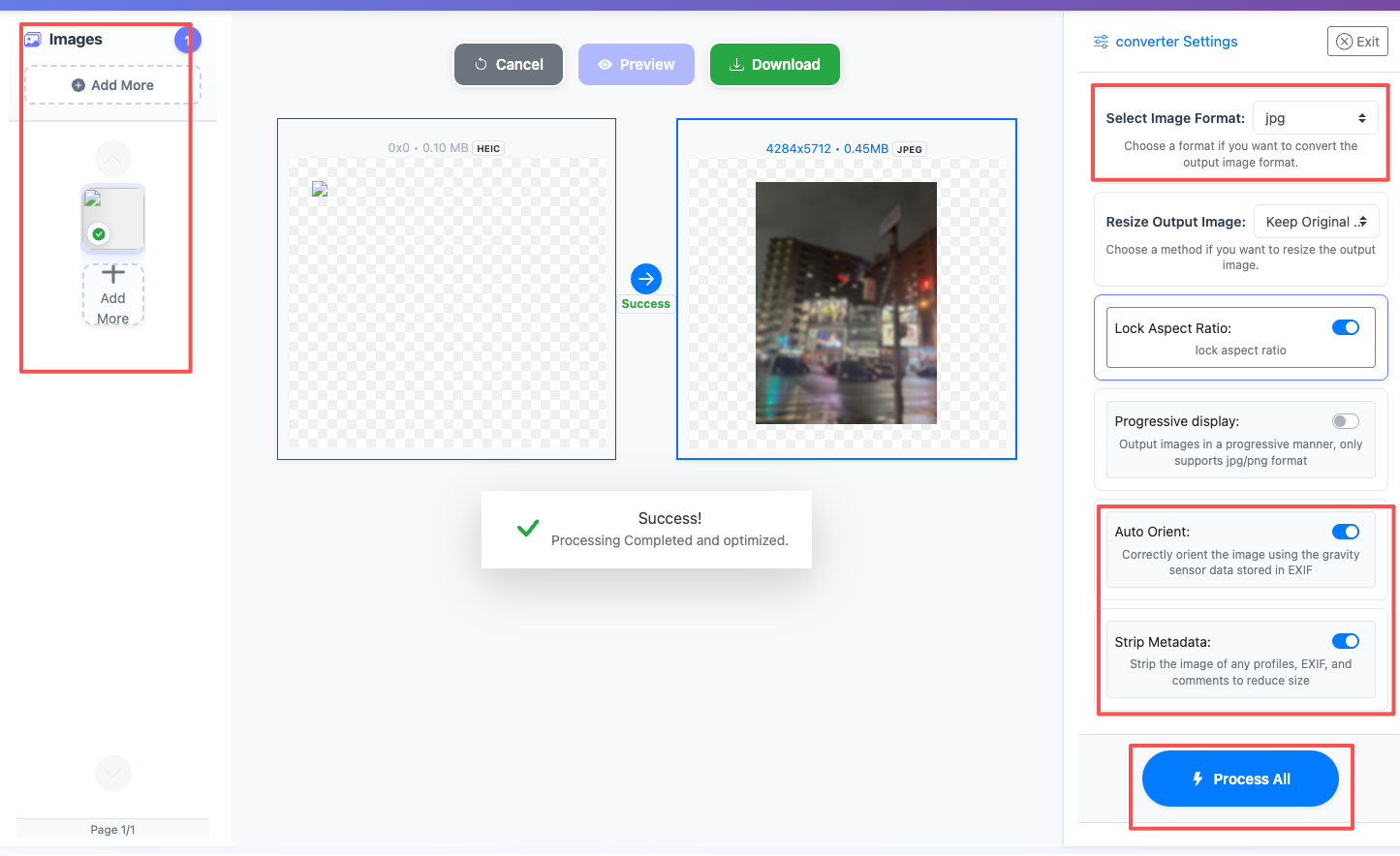
You don't need to install software or configure your operating system. Open the converter in a browser, upload the HEIC image, convert it to JPEG or PNG, and preview the result.
It works across computers and mobile devices as long as you have a browser and an internet connection.
What Should You Look for in an Online HEIC Converter?
Not every online converter provides the same experience.
If you're converting iPhone photos, these are the features that matter most.
No Account Required
For a quick conversion, you shouldn't have to create an account just to download one image.
A browser-based tool should ideally let you upload and convert immediately.
Batch HEIC Conversion
If you have ten or twenty iPhone photos, converting them one at a time gets tedious.
Batch processing lets you upload multiple HEIC files and process them together.
This is particularly useful after transferring a large number of photos from an iPhone.
Works on Mobile
A good online HEIC converter should work directly in a mobile browser.
That means you can convert an HEIC image from an iPhone, Android phone, Windows PC, or Mac without installing a separate application.
Automatic Orientation
Phone photos often contain orientation information in their metadata.
A converter that automatically corrects image orientation can prevent photos from appearing sideways or upside down after conversion.
This becomes particularly useful when moving photos between Apple and Windows devices.
Metadata and Privacy
When you upload a personal photo to an online service, privacy matters.
Photos can contain metadata such as:
- GPS location
- Camera or phone model
- Capture date and time
- Other EXIF information
A useful converter should clearly explain how uploaded and processed files are handled and whether they are retained.
Preview Before Downloading
If your goal is simply to view an HEIC image, you may not even want to download the converted file immediately.
Being able to preview the JPEG or PNG first makes it easier to confirm that the conversion looks correct before saving it.
Viewing HEIC Images Online with ConvertFT
ConvertFT provides a browser-based way to convert HEIC images into more widely supported formats such as JPEG and PNG.
The basic workflow is straightforward. Please refer to how to batch convert HEIC to JPEG.

Once conversion is complete, you can preview the resulting images directly in your browser.
Download the images you want
If the result looks good, download the converted files. You don't have to download an image simply to check whether the conversion worked.
For batch jobs, multiple images can be processed together rather than waiting for each photo individually.
ConvertFT also automatically corrects image orientation during processing and removes EXIF metadata by default, helping reduce the risk of unintentionally sharing location and device information.
Files are automatically deleted after processing rather than being kept as a permanent photo library.
HEIC vs. JPEG: Which One Should You Use?
HEIC is usually better when storage efficiency matters.
JPEG is usually better when compatibility matters.
| Feature | HEIC | JPEG |
|---|---|---|
| Image quality | High | High |
| File size | Usually smaller | Usually larger |
| iPhone support | Excellent | Excellent |
| Browser compatibility | Varies | Excellent |
| Windows compatibility | Depends on setup | Excellent |
| Social media compatibility | Varies | Excellent |
| Website upload compatibility | Varies | Excellent |
| Best for | Storage and Apple devices | Sharing and compatibility |
A practical approach is to keep the original HEIC file for storage and use JPEG when you need maximum compatibility.
That way, you don't have to give up the advantages of HEIC just because a particular website or device doesn't support it.
Frequently Asked Questions About Viewing HEIC Files
Can I open HEIC files in Chrome?
It depends on the browser and operating system. HEIC support is not as universal as JPEG support, so a HEIC image may not display correctly in Chrome.
If Chrome cannot display the file, converting it to JPEG or PNG is usually the simplest workaround.
How can I view HEIC files on Windows?
You can use Windows' available HEIF/HEVC support, install the required extensions, use compatible software, or convert the HEIC image to JPEG or PNG.
For occasional viewing, online conversion can be easier than installing additional codecs.
Can I view an HEIC image without installing software?
Yes. If your browser or operating system doesn't support HEIC directly, you can use an online HEIC converter to convert the image to JPEG or PNG and preview the result in your browser.
Does renaming HEIC to JPG work?
No. Renaming the file extension does not change the underlying image format. A HEIC file remains a HEIC file even if its filename ends in .jpg.
Is JPEG better than HEIC?
Neither format is universally better.
HEIC generally offers better storage efficiency, while JPEG has much broader compatibility. For sharing photos with people, websites, or devices that may not support HEIC, JPEG is usually the safer choice.
Can I convert multiple HEIC images at once?
Yes. Batch conversion is useful when you have multiple iPhone photos that need to be converted to JPEG or another compatible format.
Is it safe to convert HEIC images online?
The answer depends on the service's file-handling and privacy practices.
Before uploading personal photos, check whether the service stores uploaded files, how long they are retained, and whether EXIF metadata is removed.
The Simple Solution to HEIC Compatibility
HEIC is a good image format. Its biggest problem isn't image quality — it's compatibility.
Your iPhone may display the original photo perfectly, while a Windows computer, browser, website, or another person's device may not.
You don't necessarily need to install a codec or change your system configuration.
For occasional use, the simplest workflow is:
Upload HEIC → Convert to JPEG or PNG → Preview → Download
If you only need to view an HEIC photo, this can be much faster than installing software or browser extensions.
And if you want to keep the benefits of HEIC for your original photos, you can simply keep the original HEIC file and create a JPEG copy whenever compatibility matters.
ConvertFT's HEIC converter lets you convert HEIC images online, preview the results, and download compatible copies without installing an application or creating an account.